Project Zomboid Build 42 Modding Guide
Steam Workshop, official mod manager, load order hygiene, and Build 42 migration for hosts and players.
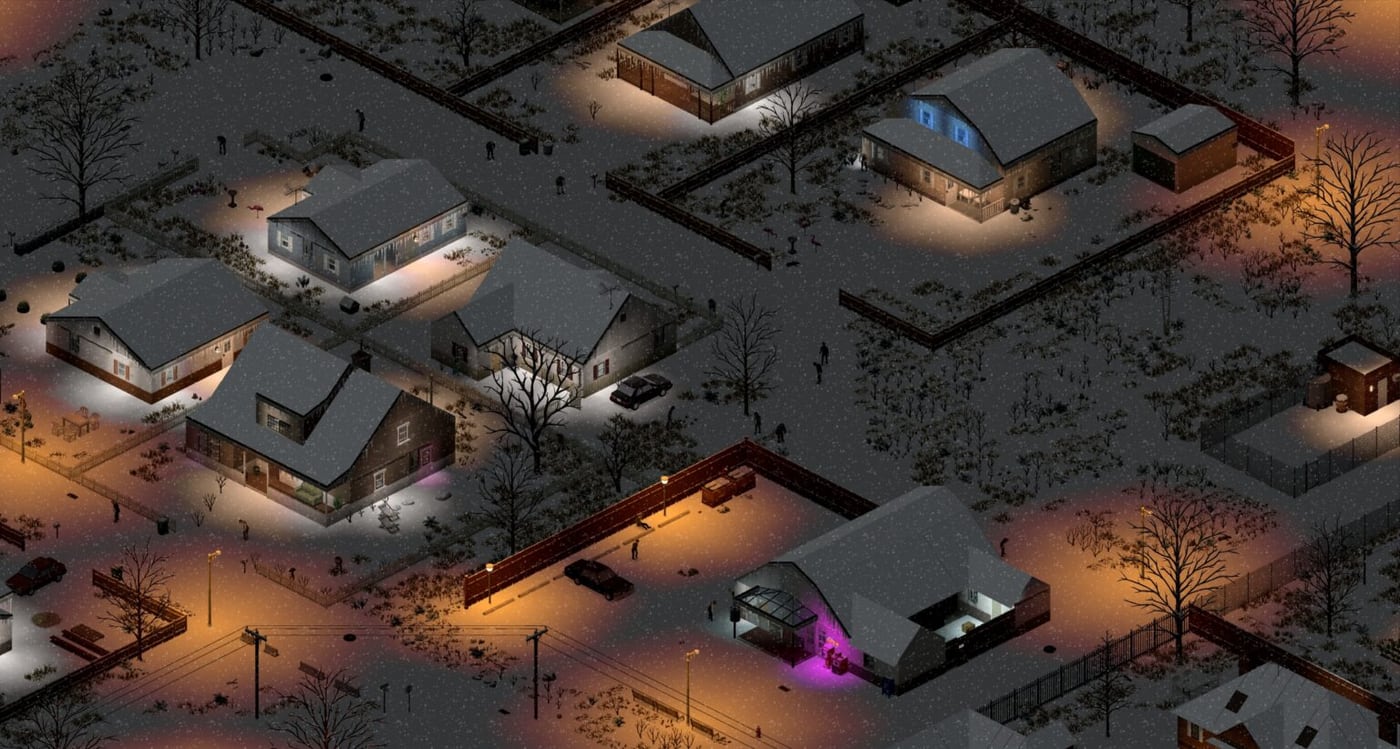
Build 42 Early Access ships with an official mod manager and new Workshop integration that replaces the older folder-copy methods. The doubling of Knox County, the new crafting UI, animal systems, and the August 2026 security hotfixes all touched mod compatibility in ways that older tutorials do not cover. This guide explains how to find, install, configure, and maintain mods for Build 42.20.4 stable in both single-player and dedicated server environments.
Official mod manager overview
Project Zomboid Build 42 introduced a first-party mod manager accessible from the main menu under “Mods.” This interface replaces the older Workshop subscription plus manual folder approach for most users:
- Browse: search and filter Workshop content by category, popularity, and compatibility tags.
- Subscribe: one-click subscription adds mods to your local download queue.
- Manage: enable/disable mods, reorder load priority, and view dependency chains.
- Update: mod updates through Steam Workshop sync automatically when you launch.
The mod manager shows a compatibility badge on mods that have been explicitly updated for Build 42. Unmarked mods may work but lack verified integration. Check comments and ratings before subscribing to unmarked items.
Finding quality mods for Build 42
Where to search
- Steam Workshop: the primary distribution channel. Sort by “Most Popular” and filter for “Updated for Build 42” where available.
- The Indie Stone Discord: mod authors post previews and compatibility announcements in the modding channels.
- PZWiki mod list: maintained community compatibility list at pzwiki.net.
What to look for
- Recent update date (2025-2026) indicating active maintenance.
- Build 42 compatibility notes in the description.
- Clear installation requirements (dependencies listed).
- Active comment sections with reported issues.
Popular Build 42 mod categories
Quality of life: inventory sorting, expanded UI information, faster crafting confirmation, map improvements.
Gameplay additions: new items, weapon balancing mods, expanded traits and occupations, additional vehicle options.
Map expansions: additional towns, expanded Louisville districts, new building types.
Mechanics overhauls: rebalanced survival difficulty, expanded crafting recipes, NPC frameworks (for future Build 43 readiness).
Visual enhancements: texture packs, lighting improvements, UI skinning (these affect performance on lower-end hardware).
Installation for single-player
Using the official mod manager
- Launch Project Zomboid and navigate to Mods from the main menu.
- Browse or search for desired mods.
- Click Subscribe on Workshop items.
- After subscribing, ensure the mod appears in your Installed list.
- Enable the mod by checking the checkbox next to its name.
- Reorder if required—drag and drop to set load priority.
- Click Save and Play to launch with mods active.
Manual installation (legacy method)
Some mods still require manual installation:
- Subscribe to the Workshop item.
- Find the mod folder in
steamapps/workshop/content/108600/. - Copy the mod folder to
Zomboid/Mods/. - Enable in the in-game mod manager.
The manual method is generally discouraged for Build 42; use the mod manager for automatic dependency resolution.
Load order and dependencies
Load order matters when mods override the same game files. General principles:
Base load order
- Core mods that modify fundamental systems (inventory, crafting, zombies).
- Content mods that add items, vehicles, or map elements.
- UI and quality of life mods that sit on top.
Specific ordering tips
- Zombie behavior mods load before spawn mods.
- Vehicle mods that add new vehicles load before vehicle tuning mods.
- Map expansion mods load before building interior mods.
- Texture mods load last to ensure visual overrides apply correctly.
Dependency conflicts
If two mods modify the same lua table, the lower-loaded mod’s changes are overwritten. Check mod descriptions for reported conflicts and load order preferences. When conflicts occur, disable conflicting mods or find alternatives.
Dedicated server mod setup
Server mod installation differs from single-player:
Server file structure
On a dedicated server, the Zomboid/Server/ folder contains:
Server/
  servertest.ini        # Server configuration
  mods/                 # Server-side mod files
  Workshop/             # Steam Workshop content (if configured)
Server mod configuration
-
Identify Workshop IDs for all mods your server will run.
-
In
servertest.ini, add:WorkshopItems=123456789,987654321,111222333Use numeric Workshop IDs, not mod names.
-
Alternatively, copy mod folders to
Server/Mods/and reference them inMods=modid1,modid2. -
Ensure all connected clients have the same mods enabled in the same order. Mismatch causes desync.
Server restart after mod changes
- Always announce restarts in advance to players.
- Back up the
Zomboidfolder before enabling new mods on active worlds. - New mods on existing saves may not apply retroactively; some require fresh worlds.
Build 42 specific migration notes
What changed in Build 42
- Crafting UI overhaul affects any mod that adds crafting recipes or modifies the crafting interface.
- Animal systems mean livestock and wildlife mods may need updates for proper integration.
- Doubled map means map expansion mods may reference old coordinates.
- Basement additions affect building navigation mods.
After the August 2026 hotfixes
Build 42.20.1 through 42.20.4 addressed memory, chunk unloading, and security. Mod authors updated their files accordingly. If you experience:
- Memory spikes: update all mods or disable incrementally to isolate culprits.
- Chunk loading hangs: some map mods with custom tiles may conflict with the new tile library.
- Workshop errors: ensure mods use
%%instead of%in display text (42.20.2 change).
Mods that may break across updates
- Mods using
loadstringorloadstreamwere affected by the 42.20.4 security removal. Check for author updates. - Mods that modify zombie population tables may conflict with Build 42 sandbox changes.
- Older weapon rebalance mods may conflict with Build 42’s revised weapon stats.
Essential mods for Build 42 (2026 recommendations)
Based on community feedback and Workshop popularity:
Britt’s Lighting Mod: improves interior and outdoor lighting without performance hit. Compatible with most visual mods.
Better Sorting: inventory management overhaul that adds category tabs, search, and bulk selection. Essential quality of life.
Vehicle Edge Slide Fix: addresses vehicle collision physics issues in Build 42. Highly recommended for anyone using vehicles heavily.
Expanded Helicopter Events: adds configurable helicopter behavior beyond the base game’s single-event model.
Additional Maps: various community map expansions for Build 42’s doubled county. Check compatibility notes for specific versions.
Skill Recovery Mods: quality of life for skill gain rates during early access iteration.
Troubleshooting common mod issues
Game crashes on launch with mods
- Disable all mods and verify the base game launches.
- Re-enable mods in batches to isolate the problematic one.
- Check Steam Workshop for known issues and update if available.
- Verify file integrity in Steam.
Mod not appearing in game
- Confirm the mod is checked in the mod manager.
- Check that load order does not position it below conflicting mods.
- Verify the mod folder exists in
Zomboid/Mods/(manual installs). - Try disabling and re-enabling.
Desync in multiplayer with mods
- Ensure server and all clients run identical mod lists.
- Confirm load order matches across all connections.
- Verify all parties have updated to the latest mod versions.
- Check that server is running the correct Build 42 branch.
Multiplayer mod etiquette
- Hosts decide mods. Players who do not want specific mods may decline to join.
- Announce mod changes before implementing them. Surprising players mid-session causes frustration.
- Provide mod lists in Discord or server description so players can prepare.
- Test new mods on a test server or single-player save before deploying to active worlds.
- Respect playstyle preferences. Some players join specifically for certain mod configurations.
Updating mods
Steam Workshop mods update automatically when you launch. For dedicated servers without Steam client:
- On a machine with Steam installed, run the Workshop subscription.
- Copy updated mod folders to the server’s
Server/Mods/directory. - Restart the server to load updates.
Schedule mod updates during low-population hours and announce them to players.
Backup before mod changes
Before enabling, disabling, or updating mods on an active save:
- Navigate to
C:\Users\<you>\Zomboid\. - Copy the entire
Savesfolder toSaves_backup_<date>. - If updating server, back up
Server/folder as well.
Mod changes on existing saves can cause unexpected behavior. Backups take 2 minutes; restoration after corruption takes hours.
Frequently Asked Questions
Quick answers to the most common questions.
How do I install mods in Project Zomboid Build 42?
Use the official mod manager from the main menu under 'Mods.' Browse Workshop, subscribe to items, enable them in the list, and reorder if needed. Click 'Save and Play' to launch with mods active.
What is the correct load order for Project Zomboid mods?
General rule: core mods first (zombie behavior, spawning), then content mods (items, vehicles, maps), then UI/visual mods last. Specific conflicts require checking mod descriptions and testing. Zombies before spawns, vehicles before vehicle tuning, maps before interiors.
How do I set up mods on a dedicated server?
Add Workshop item IDs to servertest.ini with WorkshopItems=id1,id2,id3. Alternatively copy mod folders to Server/Mods/ and reference them in Mods=modid1,modid2. All clients must run identical mod lists in identical order.
Why did my mods break after the August 2026 hotfixes?
42.20.4 removed loadstring/loadstream for security. Some older mods using these functions need author updates. Also check that mod text uses %% instead of % for display strings (42.20.2 change).
How do I troubleshoot mod crashes in Build 42?
Disable all mods to verify base game works, then re-enable in batches to isolate the problem. Check Workshop comments for known issues, verify file integrity in Steam, and ensure mods are updated for Build 42.
Can I use Build 41 mods in Build 42?
Generally no. Build 42 modified core systems (crafting UI, animals, map tiles) that require explicit updates. Some UI-only mods may work, but gameplay mods almost always need Build 42-specific versions.